Guides
If you are blocked in
No app and no account. Use your phone camera on the vehicle sticker.
- Scan the QR on the windscreen sticker.
- Confirm the vehicle details shown on screen.
- Verify your phone once with the SMS code (saved on this browser for 90 days).
- Send the private alert, then watch the request status page for updates.
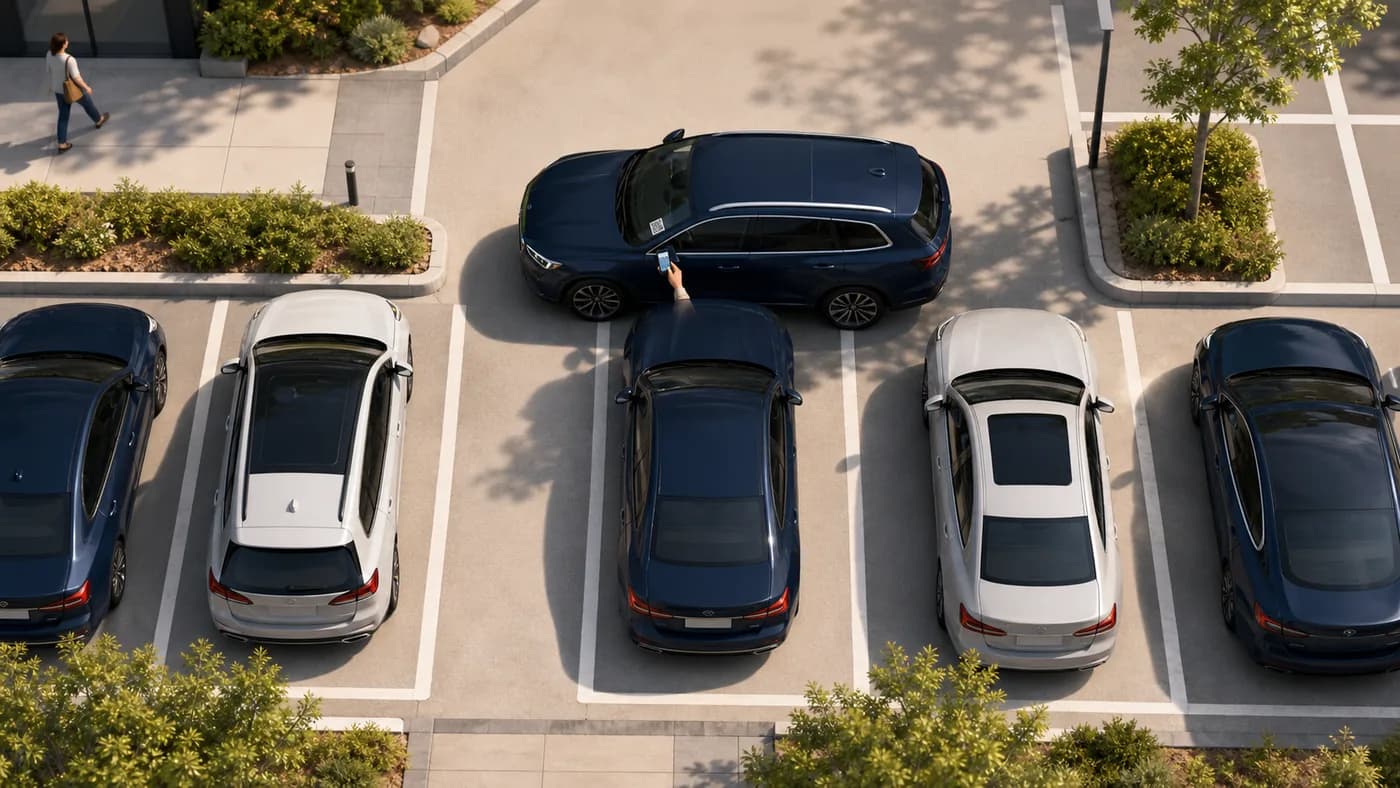 BlockedScan the sticker on the vehicle stopping you from leaving.
If you run the organisation
Use Admin to register people and vehicles, then print stickers for the fleet.
- Add contacts with a working mobile number.
- Add vehicles and assign each one to a responsible contact or group.
- In Vehicles → QR & print, generate QR codes and print the A4 sticker sheet.
- Cut the stickers, place them on the inside of each windscreen, and keep reprints ready if a sticker is lost.
If you are the blocker
You receive an SMS when someone needs the vehicle moved. Your number stays private.
- Open the secure link in the SMS.
- Choose On my way, Already moved, or Covered — no action needed when someone else claimed it.
- The requester sees status updates without seeing your personal details.
- If you get a reminder later, open the same link again to update the status.
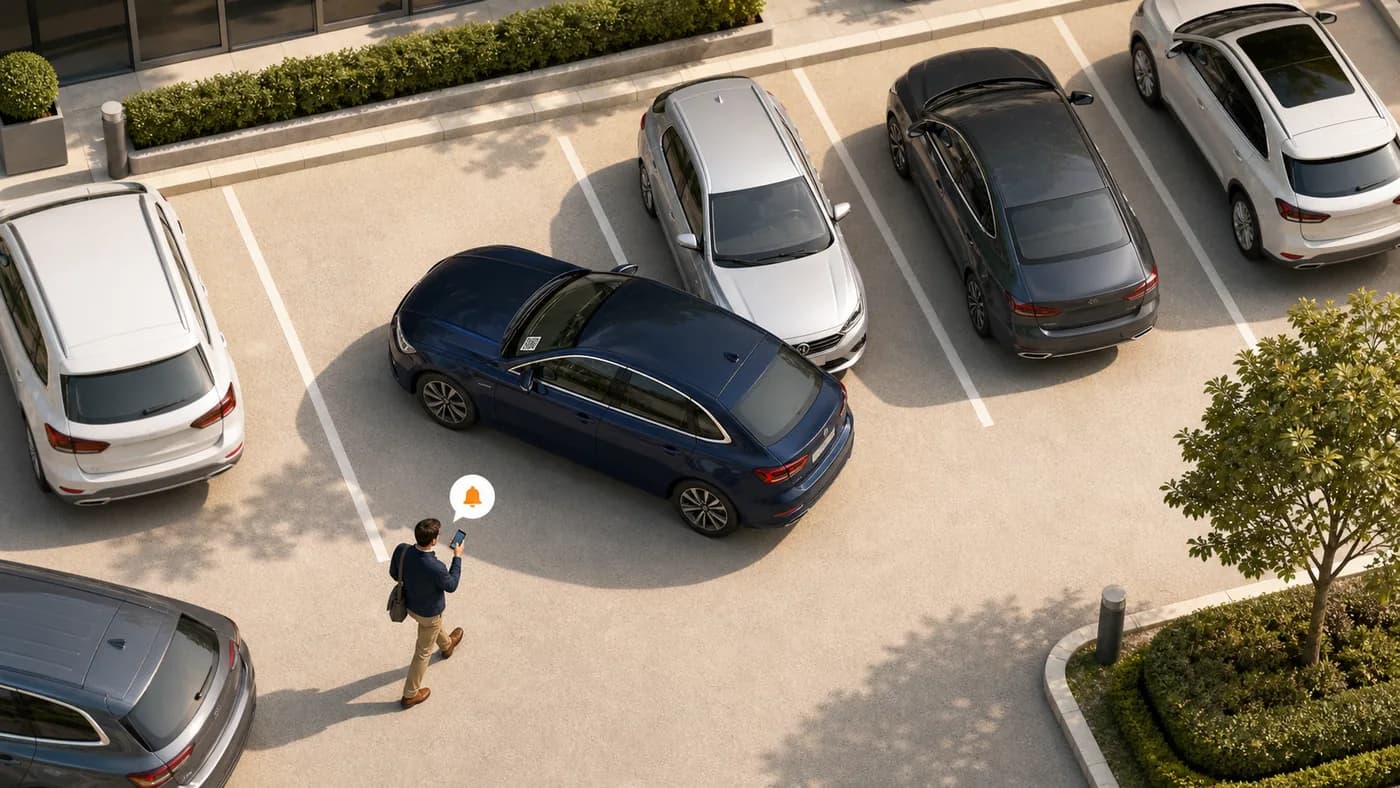 BlockerOpen the alert and move the vehicle when someone needs you to move.
Printing and displaying stickers
Stickers are designed for A4 sheets with cut guides and a clear QR for windscreen scanning.
- Print from Admin using a normal computer printer and A4 paper or sticker sheets.
- Cut along the dashed guides so each sticker stays intact.
- Place the sticker inside the windscreen where scanners can see it.
- If you regenerate a QR, print and replace the old sticker immediately — older codes stop working.
Browse windscreen holders in Shop
Need something else? Use Contact to reach the EMSHI team.
